
Connecting a GSTIN
Walk through connecting a GST Taxpayer (OTP) or NIC E-Invoice/E-Way Bill (password) login from Settings.
Open Settings -> Government Portal (workspace admin permission required)
Finish the handshake -- enter the OTP (GST Taxpayer) or nothing further (NIC, verified immediately)
Step 1: Open Government Portal Settings
Open Settings -> Government Portal. With no connections yet, the panel looks like this:
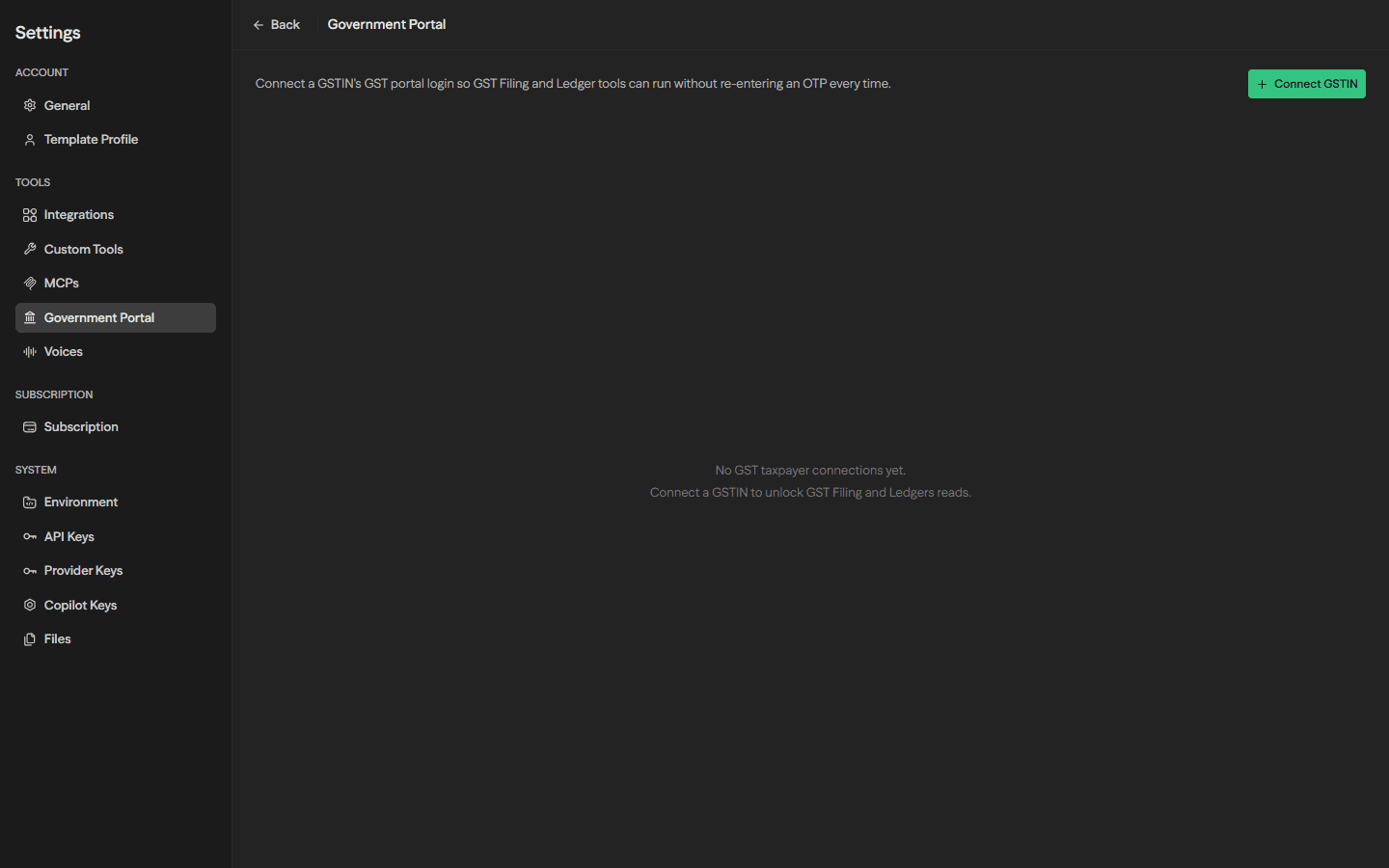
Click Connect GSTIN.
Step 2: Pick a Connection Type
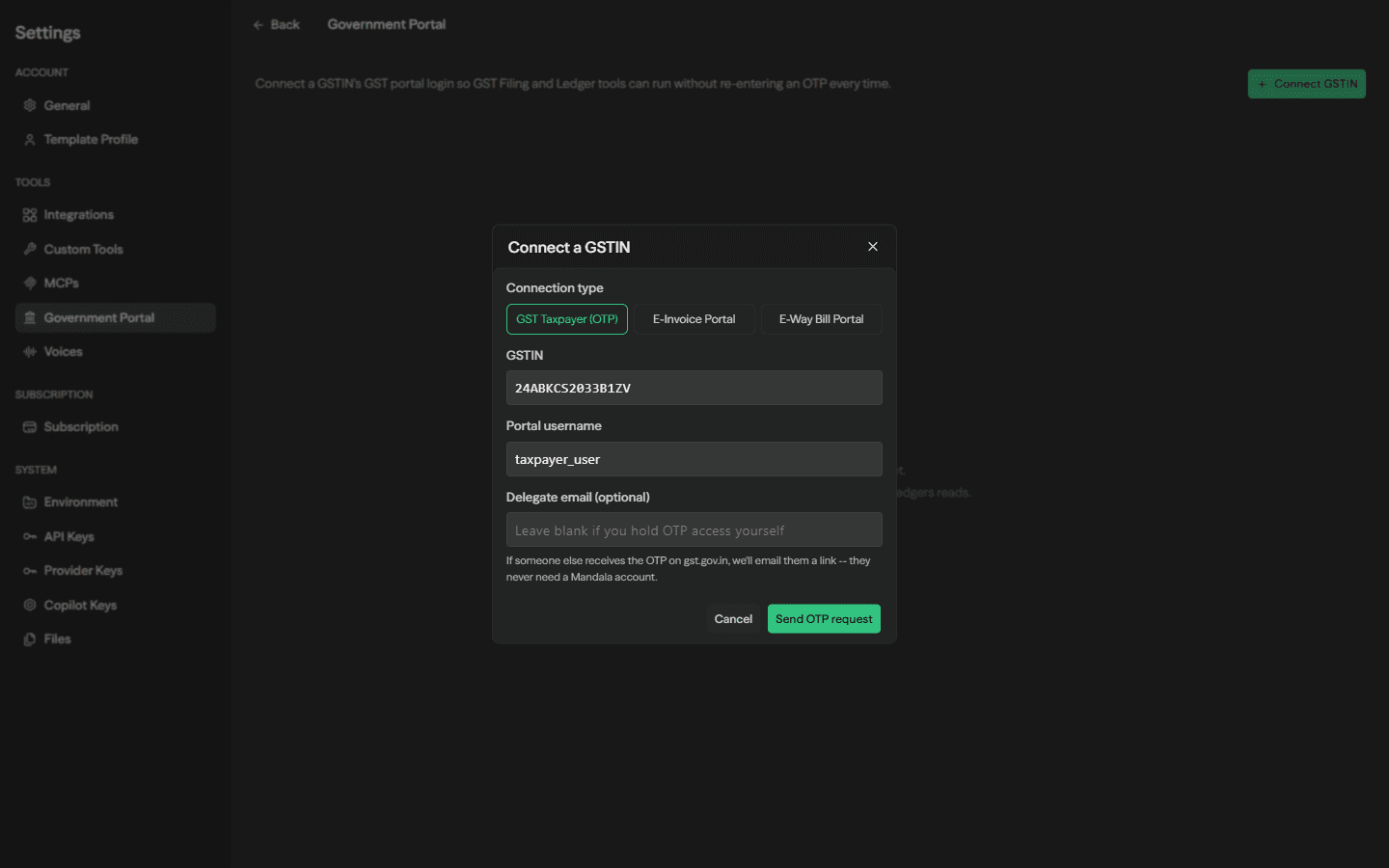
The dialog opens on GST Taxpayer (OTP) by default. Enter the GSTIN and its portal username, and optionally a delegate email if someone else holds OTP access:
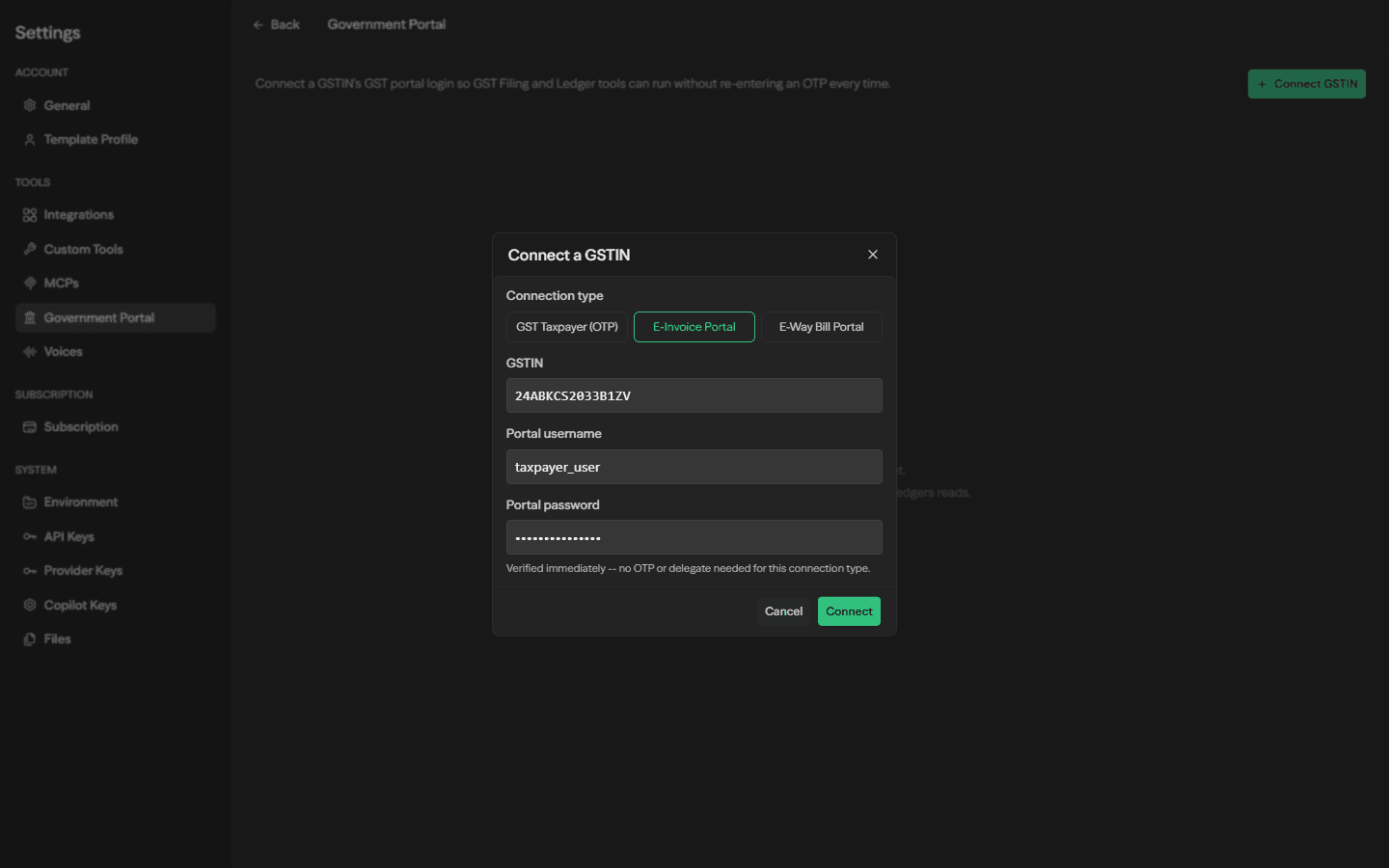
Switching to E-Invoice Portal or E-Way Bill Portal replaces the delegate-email field with a password field instead -- these two connect with a real username/password, not an OTP:
Step 3: Finish the Handshake
Clicking Send OTP request asks GSTN to send a one-time code to the taxpayer's registered mobile/email, then the dialog swaps to a 6-digit code input.
If a delegate email was entered, nothing is asked for here -- a link is emailed to that address instead, and the delegate completes the OTP entry themselves on a page that needs no Mandala account. The connection shows as pending until they do.
Enter the code as soon as it arrives -- Sandbox's OTP window is short. Once verified, the connection is active and every GST Filing/Ledgers tool for that GSTIN works immediately.
Clicking Connect verifies the username/password against the real NIC portal immediately -- there's no second step. On success the connection is active right away; on failure (wrong credentials, or the wrong environment for a test API key) the dialog shows the real error and nothing is saved.
Managing Existing Connections
Once connected, each GSTIN appears as a row showing its type, status, and (for GST Taxpayer) how long the current session has left. Reconnecting resends the handshake with the same GSTIN; revoking removes the connection entirely -- any workflow that depends on it then fails with a clear "connect it first" error rather than a confusing one.
A GST Taxpayer session lasts about 6 hours. Once it lapses, reads for that GSTIN fail until it's refreshed or reconnected -- there is no password to silently refresh from, since GSTN never issued one. NIC connections refresh themselves automatically from the stored password and don't need manual reconnecting unless the password itself changes.