
Environment Variables
Environment variables provide a secure way to manage configuration values and secrets across your workflows, including API keys and other sensitive data that your workflows need to access. They keep secrets out of your workflow definitions while making them available during execution.
Variable Types
Environment variables in Mandala work at two levels:
- Personal Environment Variables: Private to your account, only you can see and use them
- Workspace Environment Variables: Shared across the entire workspace, available to all team members
Workspace environment variables take precedence over personal ones when there's a naming conflict.
Setting up Environment Variables
Navigate to Settings → Environment to configure your environment variables. Workspace and Personal variables are two separate, independently-managed lists:
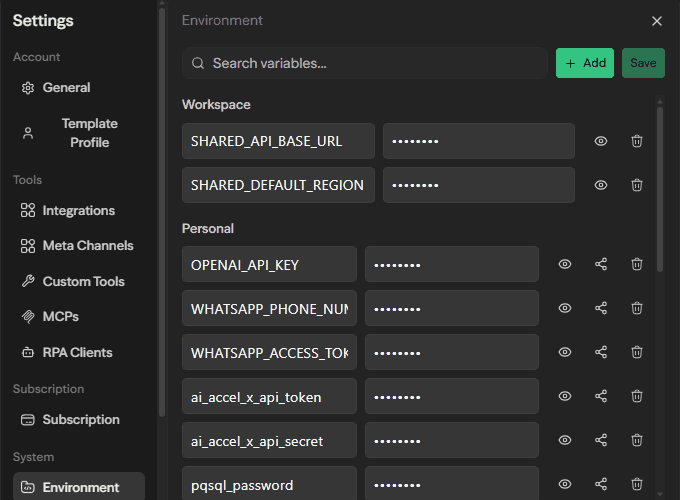
+ Add creates a new Personal variable. Personal variables show an eye icon (reveal), a share icon, and a delete icon; Workspace variables show only reveal and delete, since they're already shared.
Making a Variable Workspace-Scoped
There's no separate "create as workspace variable" flow -- instead, click the share icon on an existing Personal variable's row to promote it to workspace scope in one action. Once promoted, it moves into the Workspace section and becomes available to every workspace member, in every workflow in that workspace.
Using Variables in Workflows
To reference environment variables in your workflows, use the {{}} notation. When you type {{ in any input field, a dropdown will appear showing both your personal and workspace-level environment variables. Simply select the variable you want to use.
Variable Precedence
When you have both personal and workspace variables with the same name:
- Workspace variables take precedence over personal variables
- This prevents naming conflicts and ensures consistent behavior across team workflows
- If a workspace variable exists, the personal variable with the same name is ignored
Choose variable names carefully to avoid unintended overrides. Consider prefixing personal variables with your initials or workspace variables with the project name.
Security Best Practices
For Sensitive Data
- Store API keys, tokens, and passwords as environment variables instead of hardcoding them
- Use workspace variables for shared resources that multiple team members need
- Keep personal credentials in personal variables
Variable Naming
- Use descriptive names:
DATABASE_URLinstead ofDB - Follow consistent naming conventions across your team
- Consider prefixes to avoid conflicts:
PROD_API_KEY,DEV_API_KEY
Access Control
- Workspace environment variables respect workspace permissions
- Only users with write access or higher can create/modify workspace variables
- Personal variables are always private to the individual user