
Agent
The Agent block serves as the interface between your workflow and Large Language Models (LLMs). It executes inference requests against various AI providers, processes natural language inputs according to defined instructions, and generates structured or unstructured outputs for downstream consumption.
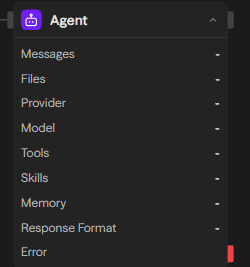
Overview
The Agent block enables you to:
Process natural language: Analyze user input and generate contextual responses
Execute AI-powered tasks: Perform content analysis, generation, and decision-making
Call external tools: Access APIs, databases, and services during processing
Generate structured output: Return JSON data that matches your schema requirements
Configuration Options
System Prompt
The system prompt establishes the agent's operational parameters and behavioral constraints. This configuration defines the agent's role, response methodology, and processing boundaries for all incoming requests.
You are a helpful assistant that specializes in financial analysis.
Always provide clear explanations and cite sources when possible.
When responding to questions about investments, include risk disclaimers.
User Prompt
The user prompt represents the primary input data for inference processing. This parameter accepts natural language text or structured data that the agent will analyze and respond to. Input sources include:
- Static Configuration: Direct text input specified in the block configuration
- Dynamic Input: Data passed from upstream blocks through connection interfaces
- Runtime Generation: Programmatically generated content during workflow execution
Model Selection
The Agent block supports multiple LLM providers through a unified inference interface. Available models include:
OpenAI Models: GPT-5.2, GPT-5.1 (including Codex), GPT-4o, o1, o3, o4-mini, gpt-4.1 (API-based inference) Anthropic Models: Claude Opus 5, Claude Sonnet 5 (API-based inference) Google Models: Gemini 3, Gemini 2.5 Pro, Gemini 2.0 Flash (API-based inference) Alternative Providers: Groq, Cerebras, xAI, DeepSeek, OpenRouter, Mistral, Together, Fireworks (API-based inference) Cloud/Enterprise: Azure OpenAI, Azure Anthropic, Vertex AI (with its own OAuth credential field) Local Deployment: Ollama-compatible models (self-hosted inference)
This model list moves fast -- the block's own model dropdown is always the source of truth for what's actually available today.
Temperature
Control the creativity and randomness of responses:
More deterministic, focused responses. Best for factual tasks, customer support, and situations where accuracy is critical.
Balanced creativity and focus. Suitable for general purpose applications that require both accuracy and some creativity.
More creative, varied responses. Ideal for creative writing, brainstorming, and generating diverse ideas.
The temperature range (0-1 or 0-2) varies depending on the selected model.
API Key
Your API key for the selected LLM provider. This is securely stored and used for authentication.
Tools
Tools extend the agent's capabilities through external API integrations and service connections. The tool system enables function calling, allowing the agent to execute operations beyond text generation.
Tool Integration Process:
- Access the Tools configuration section within the Agent block
- Select from 60+ pre-built integrations or define custom functions
- Configure authentication parameters and operational constraints
Available Tool Categories:
- Communication: Gmail, Slack, Telegram, WhatsApp, Microsoft Teams
- Data Sources: Notion, Google Sheets, Airtable, Supabase, Pinecone
- Web Services: Firecrawl, Google Search, Exa AI, browser automation
- Development: GitHub, Jira, Linear repository and issue management
- AI Services: OpenAI, Perplexity, Hugging Face, ElevenLabs
Tool Execution Control:
- Auto: Model determines tool invocation based on context and necessity
- Required: Tool must be called during every inference request
- None: Tool definition available but excluded from model context
Skills
Skills are reusable, named sets of instructions maintained in your workspace's Skills library and attached to an Agent block much like Tools. Rather than pasting shared instructions into every system prompt, you choose which skills an agent can draw on: each attached skill's name and description are always included in the system prompt (a single line per skill), while its full content is only fetched, via a load_skill tool, when the model decides a skill is relevant and activates it. This progressive disclosure keeps attaching many or lengthy skills cheap -- a 20,000-token skill costs one line of context until it's actually loaded.
See Skills for how to create and manage skills in your workspace.
Native Capabilities
Beyond Tools and Skills, an Agent block has a handful of native, opt-in-by-default advanced toggles that don't require picking anything from the Tools list:
- Web Search: lets the agent call the web on its own, at $0.01 per search, whenever it decides a query needs current information -- separate from adding a dedicated search tool (Google Search/Exa/Firecrawl) to the Tools list.
- Code Execution: lets the agent write and run sandboxed JavaScript ad hoc, with access to the workflow's environment variables and outbound network -- useful for one-off calculations or data transforms the agent decides it needs mid-task, without you wiring up a separate Function block.
- Self-Scheduling: see below.
Each of these is a switch on the block, on by default, that you can turn off per-agent if you need fully deterministic runs.
Memory
An Agent block can hold its own conversation history natively, without a separate Memory block, via the Memory Type field:
- None: no memory (default for a single-turn agent).
- Conversation: keeps the full conversation history for a given
conversationId. - Sliding Window: keeps only the most recent N messages (by count) or the most recent N tokens.
- Smart: retrieves the most relevant prior messages by embedding similarity, not just recency, blended with a recency floor so recent context is never lost entirely -- tunable via a max-memory-token budget and a candidate-pool size.
This native memory is a different mechanism from the standalone Memory block described below; use whichever fits your workflow, but don't mix both for the same conversation.
Response Format
The Response Format parameter enforces structured output generation through JSON Schema validation. This ensures consistent, machine-readable responses that conform to predefined data structures:
{
  "name": "user_analysis",
  "schema": {
    "type": "object",
    "properties": {
      "sentiment": {
        "type": "string",
        "enum": ["positive", "negative", "neutral"]
      },
      "confidence": {
        "type": "number",
        "minimum": 0,
        "maximum": 1
      }
    },
    "required": ["sentiment", "confidence"]
  }
}
This configuration constrains the model's output to comply with the specified schema, preventing free-form text responses and ensuring structured data generation.
Accessing Results
After an agent completes, you can access its outputs:
<agent.content>: The agent's response text or structured data<agent.tokens>: Token usage statistics (input,output,total)<agent.tool_calls>: Tool execution details, as{list, count}<agent.cost>: Cost breakdown (input,output,total,billed)
Advanced Features
Memory + Agent: Conversation History
Use a Memory block with a consistent id (for example, chat) to persist messages between runs, and include that history in the Agent's prompt.
- Add the user's message before the Agent
- Read the conversation history for context
- Append the Agent's reply after it runs
See the Memory block reference for details.
Self-Scheduling: Defer Check & Enqueue Workflow
Beyond a single turn, an agent can act across time using two built-in tools:
defer_check: pauses the current task and schedules a follow-up check at a future time (for example, "check back on this ticket in 2 hours") instead of giving up or making the user wait. The workflow re-runs when the delay elapses, with the deferral context available in its input so the agent can pick up where it left off;maxAttemptsandmaxTotalWaitMinutesbound how long it keeps retrying before giving up.enqueue_workflow: triggers another workflow to run in the background as a fire-and-forget follow-up action, without waiting for its result -- useful for fanning out one run per item in a list, rate-limited by the platform's shared execution queue.
Unlike Gmail, Slack, and other integrations, these aren't picked from the Tools configuration list — they're built-in capabilities available to the agent automatically, on by default. A Self-Scheduling switch on the block lets you turn this off for a given agent when you need a deterministic, single-pass run.
Inputs and Outputs
System Prompt: Instructions defining agent behavior and role
User Prompt: Input text or data to process
Model: AI model selection (OpenAI, Anthropic, Google, etc.)
Temperature: Response randomness control (0-2)
Tools: Array of available tools for function calling
Response Format: JSON Schema for structured output
agent.content: Agent's response text or structured data
agent.tokens: Token usage statistics object
agent.tool_calls: Array of tool execution details
agent.cost: Estimated API call cost (if available)
Content: Primary response output from the agent
Metadata: Usage statistics and execution details
Access: Available in blocks after the agent
Example Use Cases
Customer Support Automation
Scenario: Handle customer inquiries with database access
- User submits a support ticket via the API block
- Agent checks orders/subscriptions in Postgres and searches the knowledge base for guidance
- If escalation is needed, the Agent creates a Linear issue with relevant context
- Agent drafts a clear email reply
- Gmail sends the reply to the customer
- Conversation is saved to Memory to maintain history for future messages
Multi-Model Content Analysis
Scenario: Analyze content with different AI models
- Function block processes uploaded document
- Agent with GPT-4o performs technical analysis
- Agent with Claude analyzes sentiment and tone
- Function block combines results for final report
Tool-Powered Research Assistant
Scenario: Research assistant with web search and document access
- User query received via input
- Agent searches web using Google Search tool
- Agent accesses Notion database for internal docs
- Agent compiles comprehensive research report
Best Practices
- Be specific in system prompts: Clearly define the agent's role, tone, and limitations. The more specific your instructions are, the better the agent will be able to fulfill its intended purpose.
- Choose the right temperature setting: Use lower temperature settings (0-0.3) when accuracy is important, or increase temperature (0.7-2.0) for more creative or varied responses
- Leverage tools effectively: Integrate tools that complement the agent's purpose and enhance its capabilities. Be selective about which tools you provide to avoid overwhelming the agent. For tasks with little overlap, use another Agent block for the best results.