
Text-to-Speech
Convert text to speech using AI voices
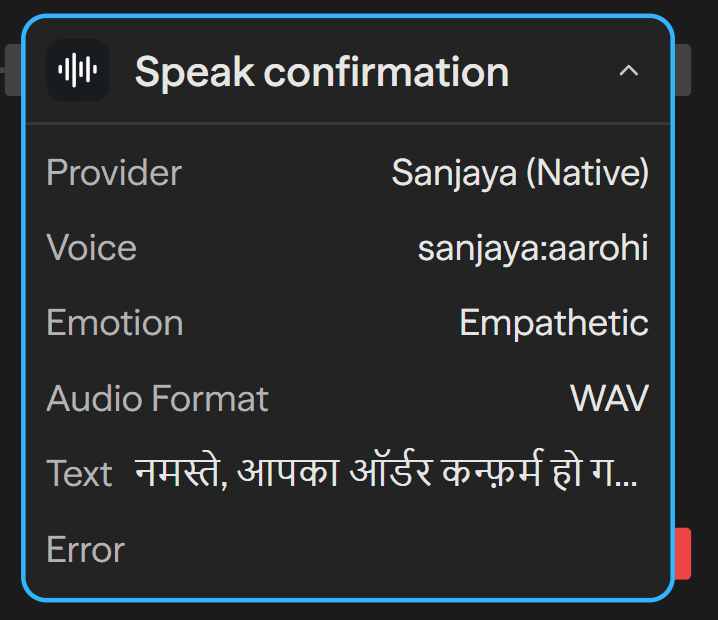
Usage Instructions
Generate natural-sounding speech from text.
Sanjaya is Ayantram's own hosted speech service and the default provider. It needs no API key, speaks 600+ languages including every major Indian language, supports emotion presets, and can use a voice cloned for your organization. Usage is billed to your workspace at ₹15 per 10,000 characters (about $0.158), charged on the characters you submit.
The other providers — OpenAI, Deepgram, ElevenLabs, Cartesia, Google Cloud, Azure and PlayHT — are billed by those vendors to your own API key.
Language is the script you write
There is no language setting to get right. Write Devanagari and the voice speaks Hindi; write Latin and it speaks English; write Bengali and it speaks Bengali — all in the same voice, and all in one line if you mix them:
Hey, just do me a favor, मेरी बात सुनो, বাকি সব ঠিক হয়ে যাবে।That renders as one continuous voice with no seams.
The accent travels with the voice, even though the language does not. An English-native voice
handed Devanagari speaks Hindi with an English accent. Pick a voice whose accent matches the language
your listener will hear most of — sanjaya:aarohi or sanjaya:nikhil for Hindi, and see the Voices
list in Settings for the native voice in each language.
Numbers are spoken correctly by default
"Speak digits as words" is on by default and should stay on. The engine mis-reads bare digit runs in
Indic scripts — डोलो 650 मिलीग्राम has been rendered as "105", "605" and "750" — so a dosage, price or
OTP read from digits is a real-world error, not a cosmetic one. With the setting on, the number is
spelled out before synthesis and read correctly.
The service also tells quantities from identifiers using context: कुल ₹320 is read as an amount, while
आपका ओटीपी 4400 है is read digit by digit ("डबल चार डबल शून्य"), because a customer cannot type back
"four thousand four hundred".
Tools
tts_sanjaya
Convert text to speech using Sanjaya, Ayantram's hosted multilingual service. No API key required.
Input
| Parameter | Type | Required | Description |
|---|---|---|---|
text | string | Yes | The text to speak. The language is implicit in the script. |
voiceId | string | No | A preset persona such as sanjaya:aarohi, or a voice cloned in Settings. Omit for the default voice. |
emotion | string | No | neutral, happy, cheerful, excited, calm, empathetic, serious, sad, angry or whisper. Works in every language. Omit to let the text choose a safe delivery. |
emotionIntensity | number | No | Strength of the emotion, 0 to 2 (default 1) |
outputFormat | string | No | wav (default), mp3, opus, flac, or ulaw/alaw for telephony |
sampleRate | number | No | 8000-24000 Hz. Telephony codecs are always 8000. |
language | string | No | Optional hint, only needed to disambiguate a shared script (pass mr-IN for Marathi) |
speed | number | No | Speaking-rate factor, 0.5 to 2 |
spellNumbers | boolean | No | Speak digits as words. On by default — see the warning above. |
autoPause | boolean | No | Add micro-pauses between clauses. Off by default; suits narration, not live calls. |
Output
| Parameter | Type | Description |
|---|---|---|
audioUrl | string | URL to the generated audio file |
audioFile | file | Generated audio file object |
duration | number | Audio duration in seconds |
characterCount | number | Characters spoken, which is what was billed |
format | string | Audio format actually returned |
attribution | string | Licence attribution for the voice used. Display it verbatim wherever the audio is surfaced. |
estimatedCost | number | Estimated cost in USD for this synthesis |
tts_openai
Convert text to speech using OpenAI TTS models
Input
| Parameter | Type | Required | Description |
|---|---|---|---|
text | string | Yes | The text to convert to speech |
apiKey | string | Yes | OpenAI API key |
model | string | No | TTS model to use (tts-1, tts-1-hd, or gpt-4o-mini-tts) |
voice | string | No | Voice to use (alloy, ash, ballad, cedar, coral, echo, marin, sage, shimmer, verse) |
responseFormat | string | No | Audio format (mp3, opus, aac, flac, wav, pcm) |
speed | number | No | Speech speed (0.25 to 4.0, default: 1.0) |
Output
| Parameter | Type | Description |
|---|---|---|
audioUrl | string | URL to the generated audio file |
audioFile | file | Generated audio file object |
duration | number | Audio duration in seconds |
characterCount | number | Number of characters processed |
format | string | Audio format |
provider | string | TTS provider used |
tts_deepgram
Convert text to speech using Deepgram Aura
Input
| Parameter | Type | Required | Description |
|---|---|---|---|
text | string | Yes | The text to convert to speech |
apiKey | string | Yes | Deepgram API key |
model | string | No | Deepgram model/voice (e.g., aura-asteria-en, aura-luna-en) |
voice | string | No | Voice identifier (alternative to model param) |
encoding | string | No | Audio encoding (linear16, mp3, opus, aac, flac) |
sampleRate | number | No | Sample rate (8000, 16000, 24000, 48000) |
bitRate | number | No | Bit rate for compressed formats |
container | string | No | Container format (none, wav, ogg) |
Output
| Parameter | Type | Description |
|---|---|---|
audioUrl | string | URL to the generated audio file |
audioFile | file | Generated audio file object |
duration | number | Audio duration in seconds |
characterCount | number | Number of characters processed |
format | string | Audio format |
provider | string | TTS provider used |
tts_elevenlabs
Convert text to speech using ElevenLabs voices
Input
| Parameter | Type | Required | Description |
|---|---|---|---|
text | string | Yes | The text to convert to speech |
voiceId | string | Yes | The ID of the voice to use |
apiKey | string | Yes | ElevenLabs API key |
modelId | string | No | Model to use (e.g., eleven_monolingual_v1, eleven_turbo_v2_5, eleven_flash_v2_5) |
stability | number | No | Voice stability (0.0 to 1.0, default: 0.5) |
similarityBoost | number | No | Similarity boost (0.0 to 1.0, default: 0.8) |
style | number | No | Style exaggeration (0.0 to 1.0) |
useSpeakerBoost | boolean | No | Use speaker boost (default: true) |
Output
| Parameter | Type | Description |
|---|---|---|
audioUrl | string | URL to the generated audio file |
audioFile | file | Generated audio file object |
duration | number | Audio duration in seconds |
characterCount | number | Number of characters processed |
format | string | Audio format |
provider | string | TTS provider used |
tts_cartesia
Convert text to speech using Cartesia Sonic (ultra-low latency)
Input
| Parameter | Type | Required | Description |
|---|---|---|---|
text | string | Yes | The text to convert to speech |
apiKey | string | Yes | Cartesia API key |
modelId | string | No | Model ID (sonic-english, sonic-multilingual) |
voice | string | No | Voice ID or embedding |
language | string | No | Language code (en, es, fr, de, it, pt, etc.) |
outputFormat | json | No | Output format configuration (container, encoding, sampleRate) |
speed | number | No | Speed multiplier |
emotion | array | No | Emotion tags for Sonic-3 (e.g., ['positivity:high']) |
Output
| Parameter | Type | Description |
|---|---|---|
audioUrl | string | URL to the generated audio file |
audioFile | file | Generated audio file object |
duration | number | Audio duration in seconds |
characterCount | number | Number of characters processed |
format | string | Audio format |
provider | string | TTS provider used |
tts_google
Convert text to speech using Google Cloud Text-to-Speech
Input
| Parameter | Type | Required | Description |
|---|---|---|---|
text | string | Yes | The text to convert to speech |
apiKey | string | Yes | Google Cloud API key |
voiceId | string | No | Voice ID (e.g., en-US-Neural2-A, en-US-Wavenet-D) |
languageCode | string | Yes | Language code (e.g., en-US, es-ES, fr-FR) |
gender | string | No | Voice gender (MALE, FEMALE, NEUTRAL) |
audioEncoding | string | No | Audio encoding (LINEAR16, MP3, OGG_OPUS, MULAW, ALAW) |
speakingRate | number | No | Speaking rate (0.25 to 2.0, default: 1.0) |
pitch | number | No | Voice pitch (-20.0 to 20.0, default: 0.0) |
volumeGainDb | number | No | Volume gain in dB (-96.0 to 16.0) |
sampleRateHertz | number | No | Sample rate in Hz |
effectsProfileId | array | No | Effects profile (e.g., ['headphone-class-device']) |
Output
| Parameter | Type | Description |
|---|---|---|
audioUrl | string | URL to the generated audio file |
audioFile | file | Generated audio file object |
duration | number | Audio duration in seconds |
characterCount | number | Number of characters processed |
format | string | Audio format |
provider | string | TTS provider used |
tts_azure
Convert text to speech using Azure Cognitive Services
Input
| Parameter | Type | Required | Description |
|---|---|---|---|
text | string | Yes | The text to convert to speech |
apiKey | string | Yes | Azure Speech Services API key |
voiceId | string | No | Voice ID (e.g., en-US-JennyNeural, en-US-GuyNeural) |
region | string | No | Azure region (e.g., eastus, westus, westeurope) |
outputFormat | string | No | Output audio format |
rate | string | No | Speaking rate (e.g., +10%, -20%, 1.5) |
pitch | string | No | Voice pitch (e.g., +5Hz, -2st, low) |
style | string | No | Speaking style (e.g., cheerful, sad, angry - neural voices only) |
styleDegree | number | No | Style intensity (0.01 to 2.0) |
role | string | No | Role (e.g., Girl, Boy, YoungAdultFemale) |
Output
| Parameter | Type | Description |
|---|---|---|
audioUrl | string | URL to the generated audio file |
audioFile | file | Generated audio file object |
duration | number | Audio duration in seconds |
characterCount | number | Number of characters processed |
format | string | Audio format |
provider | string | TTS provider used |
tts_playht
Convert text to speech using PlayHT (voice cloning)
Input
| Parameter | Type | Required | Description |
|---|---|---|---|
text | string | Yes | The text to convert to speech |
apiKey | string | Yes | PlayHT API key (AUTHORIZATION header) |
userId | string | Yes | PlayHT user ID (X-USER-ID header) |
voice | string | No | Voice ID or manifest URL |
quality | string | No | Quality level (draft, standard, premium) |
outputFormat | string | No | Output format (mp3, wav, ogg, flac, mulaw) |
speed | number | No | Speed multiplier (0.5 to 2.0) |
temperature | number | No | Creativity/randomness (0.0 to 2.0) |
voiceGuidance | number | No | Voice stability (1.0 to 6.0) |
textGuidance | number | No | Text adherence (1.0 to 6.0) |
sampleRate | number | No | Sample rate (8000, 16000, 22050, 24000, 44100, 48000) |
Output
| Parameter | Type | Description |
|---|---|---|
audioUrl | string | URL to the generated audio file |
audioFile | file | Generated audio file object |
duration | number | Audio duration in seconds |
characterCount | number | Number of characters processed |
format | string | Audio format |
provider | string | TTS provider used |
Streaming speech
The block returns a finished audio file. For a live conversation — a voice-mode chat, or an agent whose reply should start being spoken before it is finished — use the streaming endpoint instead, which returns first audio in roughly half a second regardless of how long the rest of the sentence is.
POST /api/proxy/tts/sanjaya/stream accepts two request shapes:
One line, spoken and closed (Content-Type: application/json):
{ "text": "आपका ऑर्डर कन्फ़र्म हो गया है।", "voiceId": "sanjaya:aarohi" }Text streamed in as it is produced (Content-Type: application/x-ndjson) — the shape to use when
piping a model's tokens straight into speech. The first line configures the session; every line after it
is either text or a control action:
{"voiceId": "sanjaya:aarohi"}
{"text": "Hello there, "}
{"text": "your order is confirmed."}
{"action": "end"}
The socket to the speech service is opened once for the whole reply rather than once per sentence, and each completed sentence is released for synthesis as soon as it lands — so audio keeps flowing while the model is still writing.
The response is raw 16-bit PCM, not a WAV file: a container needs a length in its header, which would mean buffering the whole clip and losing the latency the endpoint exists for. Read the format from the response headers rather than assuming it, because a telephony caller gets 8 kHz G.711 from the same endpoint:
| Header | Meaning |
|---|---|
X-Sanjaya-Sample-Rate | Sample rate to decode and play at |
X-Sanjaya-Encoding | pcm_s16le, g711_ulaw or g711_alaw |
X-Sanjaya-Channels | Always 1 |
X-Sanjaya-Bits | 16 for PCM, 8 for G.711 |
Streamed speech is billed the same way, on the characters sent.
Choosing a voice
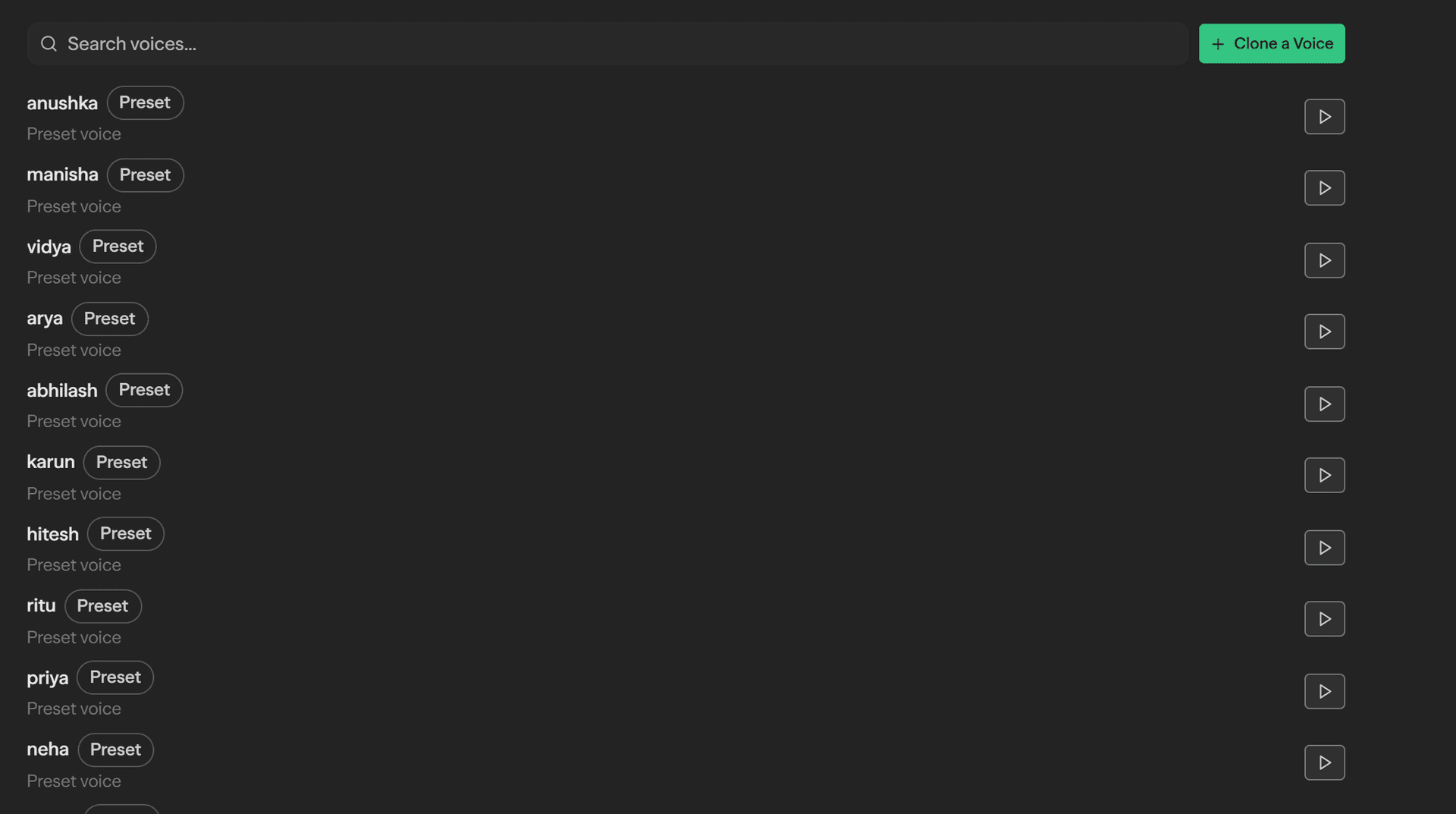
Every voice available to your workspace lives under Settings → Tools → Voices, on two shelves: Preset voices, the personas we ship and maintain, and Your voices, the ones your organization has cloned.
Each row has a play button, so you can hear a voice before you put it in front of customers. By default it speaks a standard sample line — but the box above the list takes your own line, and every voice then reads that instead. This is the useful version of an audition: whether a voice sounds pleasant reading a greeting we wrote tells you much less than whether it can say your product names, your customers' names, and your actual script without sounding wrong.
A sample line is capped at 300 characters, and an audition is a real synthesis — billed on characters exactly like a block's. Use a Text to Speech block for anything longer.
Cloned voices
A cloned voice is one your organization registers from a short recording of a real person. It is visible and usable only inside your own tenant, it appears under Your voices, and it can be removed at any time — which is also how consent is withdrawn.
Cloning a voice
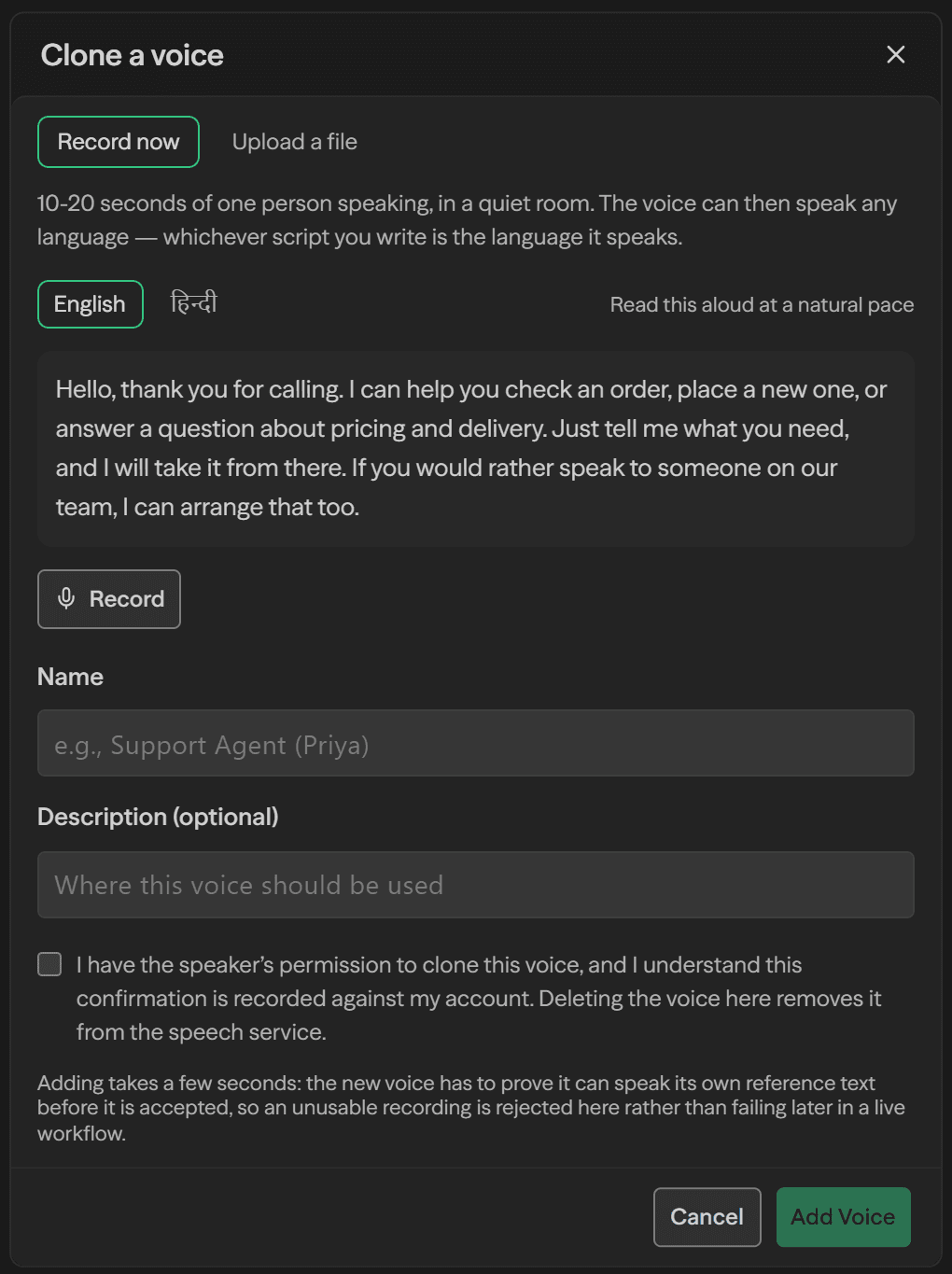
An organization admin can add a voice in about a minute. 10-20 seconds of one person speaking is all it takes, and the cloned voice then speaks any language exactly the way a preset does.
Open Settings → Tools → Voices and choose Clone a Voice.
Record, or upload a file. Record now captures in the browser and is the better option — it is tuned for cloning rather than for a phone call (see below). Upload a file takes an existing recording if you already have clean audio of the speaker.
Read the passage aloud at a natural pace. A passage is provided in English or Hindi. Use it rather than talking freely: the reference sets the clone's accent and pace, not just its timbre, so a natural customer-facing passage produces a better voice than improvised speech.
Name the voice for where it will be used — "Support Agent (Priya)" beats "Voice 2" once there are a dozen of them. The description is optional.
Confirm you have the speaker's permission. This is required, and the confirmation is recorded against your account.
Add Voice, and wait a few seconds. The service synthesizes with the new voice and re-transcribes the result to prove the clone actually works, so an unusable recording is rejected here rather than failing later in a live workflow.
The new voice appears in the same list, tagged Organization, and is immediately selectable in the
block's Voice field and by the tts_sanjaya agent tool.
Recording in the browser
The recorder is tuned for cloning rather than for a phone call, which is where most of the quality difference comes from:
- Every voice-processing feature is switched off. Browsers enable echo cancellation, noise suppression and automatic gain control by default. All three are actively harmful here — gain control flattens the dynamics that make a voice recognisable, noise suppression carves holes straight through it, and echo cancellation can duck the speaker mid-sentence. The engine clones what it is given, so it would learn all three artifacts.
- The audio is never compressed. Samples are captured straight off the audio graph and written as a 16-bit WAV, rather than the Opus the browser's own recorder produces. Opus thins exactly the top octave the cloning engine is most sensitive to.
- A passage is provided to read, in English or Hindi. The reference sets the clone's accent and pace, not just its timbre, so reading a natural customer-facing passage produces a better voice than talking at random.
Before anything is uploaded, the clip is checked in the browser and you are told what is wrong with it:
| Check | What happens |
|---|---|
| Shorter than 8s, or longer than 45s | Blocked — record again |
| Distorted (too loud for the microphone) | Blocked — nothing downstream can undo clipping |
| Very quiet | Warning — the clone copies the noise floor along with the voice |
| Mostly silence | Warning — less of the voice to learn from |
| Hissy / hot top end | Warning — the measured predictor of a clone that clicks |
These run before upload on purpose. Registration is slow — the service synthesizes with the new voice and re-transcribes the result to prove the clone works — so an unusable clip would otherwise cost a minute and a half to find out about.
A cloned voice is visible and usable only inside the organization that uploaded it. The built-in preset personas are shared by everyone.
Cloning a voice requires the speaker's permission, and the confirmation is recorded against the account that uploads the recording. Deleting the voice in Settings is the kill-switch: it stops the voice being usable and removes it from the speech service.
Adding a voice takes a few seconds because the new voice has to prove it can speak its own reference text before it is accepted — an unusable recording is rejected at upload rather than failing later in a live workflow.
Notes
- Category:
tools - Type:
tts