
Databases
Create and manage structured data collections directly in your workspace -- no workflow required.
Databases is its own top-level section in your workspace sidebar -- a place to create, browse, and edit structured data directly, independent of any workflow. Once a database exists here, workflows can read and write to it using the Database block, but you don't need a workflow at all to create a table, define its columns, or add rows by hand.
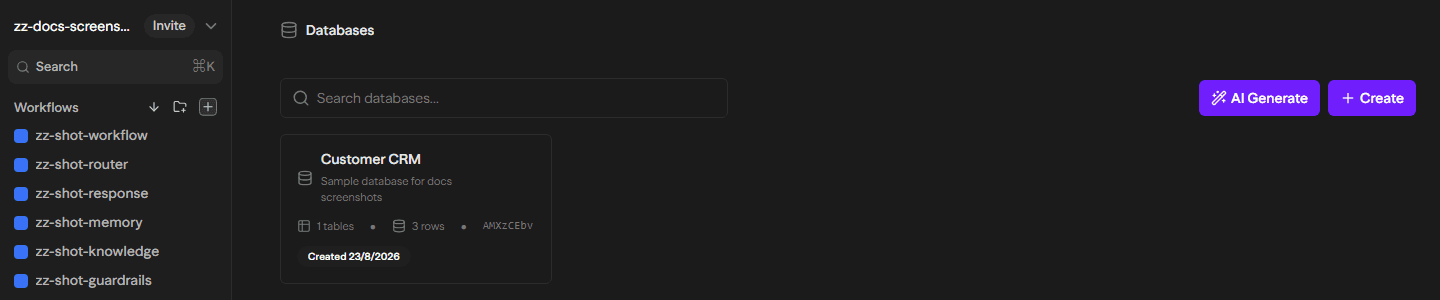
Creating a Database
Click Create, give the collection a name and optional description, then add tables and columns yourself one at a time (see Tables and Columns below).
Click the AI-generate (sparkle) button and describe what you're building in a sentence -- for example, "a CRM with contacts, companies, and deals." Mandala's copilot proposes a complete multi-table schema (tables, columns, types, required/unique constraints) in one pass, which you review before anything is created. This is a real LLM call, not a template picker -- it reasons about what tables and columns your description implies, not just filling in a canned starter set.
Both creation paths require Write or Admin permission on the workspace.
Tables and Columns
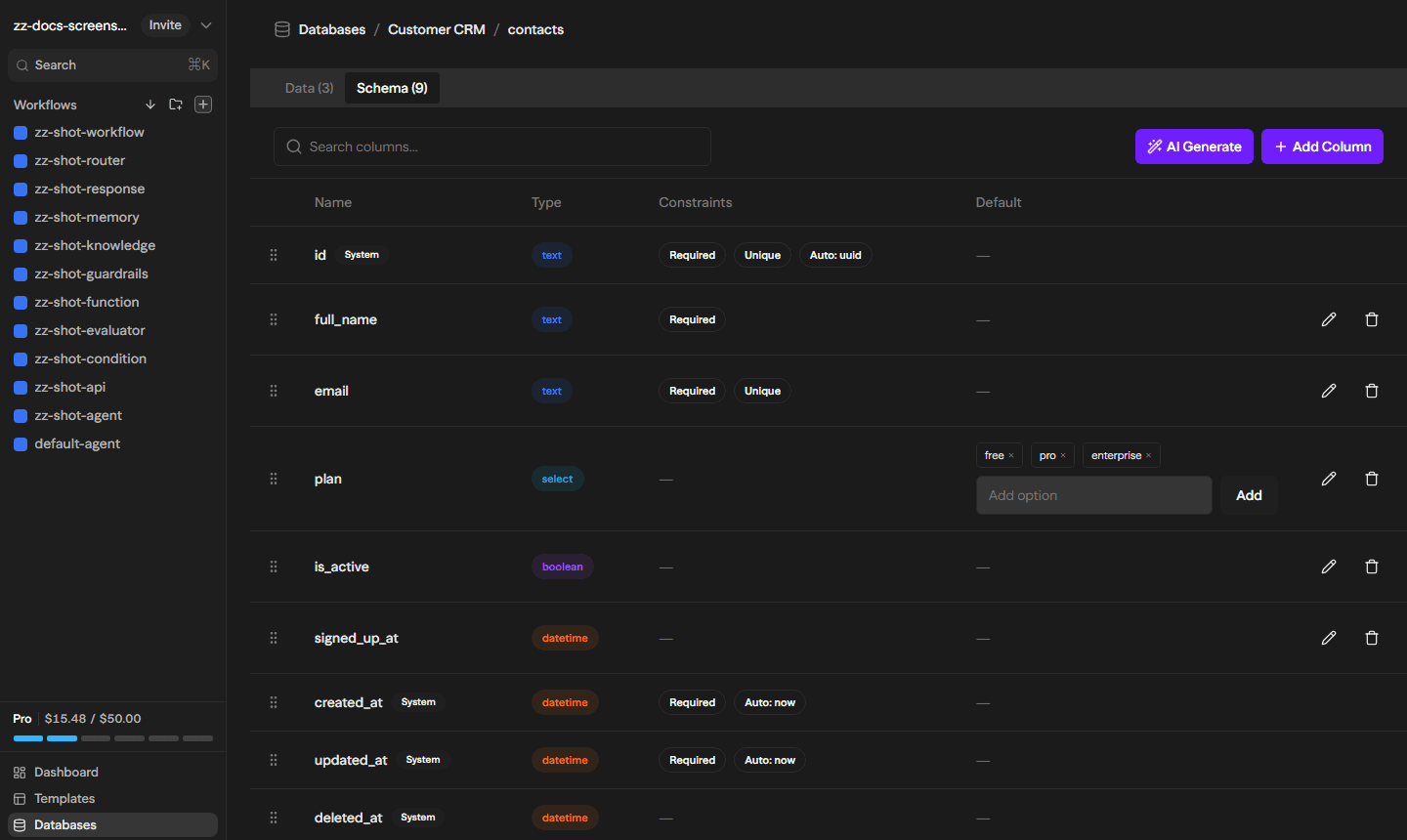
Each database is a collection of tables, and each table has a schema: a set of typed columns.
Column types: text, number, boolean, date, datetime, JSON, select, and multiselect. Select/multiselect columns hold a list of options that can also be extended on the fly while entering row data.
System columns: every table gets id, created_at, updated_at, and deleted_at automatically -- these are managed for you and can't be edited or removed.
Generated values: any column (not just id) can be set to auto-populate with a UUID or the current timestamp when a row is inserted, instead of requiring manual input.
Constraints: mark a column Required or Unique. Unique constraints are enforced at the database level, including across bulk CSV imports.
AI-Generating Tables and Columns
Beyond generating a whole database up front, you can ask the copilot to evolve an existing one:
- Generate a table: describe what you need in plain language, and the copilot decides on its own whether to create a new table, add columns to an existing one, rename/redescribe a table, or delete one -- using your collection's current schema as context so it doesn't propose duplicates.
- Generate columns: scoped to a single table, describe what fields you need and the copilot proposes column additions, edits, or removals for that table (system columns are always off-limits).
Every AI-generated change goes through the same preview-then-confirm flow as creating a database from scratch -- nothing is applied until you approve it.
Working with Data
Each table has a Data tab alongside its Schema tab: a spreadsheet-style view for adding, editing, searching, and deleting rows directly.
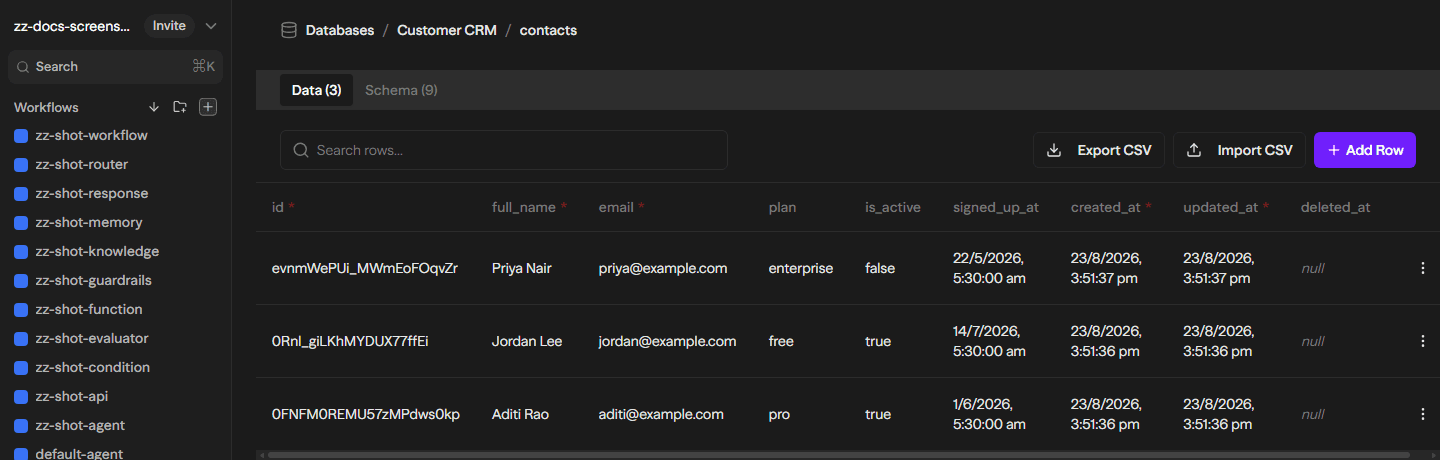
The Data and Schema tabs load an entire table in one request -- there's no pagination in this view. For very large tables, use the Database block's List operation instead, which supports a configurable row limit.
Importing and Exporting CSV
- Import: matches CSV columns to your table's columns by header name, casts values to the right type, and flags Excel formula errors (
#REF!,#VALUE!, and similar) -- an error in a required oridcolumn blocks the whole import, while errors elsewhere are treated as empty values. A preview shows the first 50 rows before you confirm. This is header-matching and type-casting only; it does not infer a schema for you the way AI-generate does. - Export: downloads the rows currently loaded in the Data tab as a CSV file.
Using a Database in Workflows
Everything you build here is immediately available to the Database block on the canvas, and to agents via the Database agent-tool entry -- query, insert, update, delete, and list operations all run against the exact same tables and rows you see in this section, with no separate sync step.
Best Practices
- Try AI-generate first, even for a schema you already have in mind: reviewing and correcting a proposed schema is usually faster than building one column at a time, and you can still edit anything it produces.
- Use generated UUID/timestamp columns instead of asking workflows to compute them: one less thing for a workflow to get wrong, and it keeps ids consistent whether a row comes from a workflow, a manual edit, or a CSV import.
- Prefer the Database block's
Listoperation for large tables: the standalone Data tab has no pagination and will load the whole table at once. - Run
List → Columns(or check the Schema tab) before writing a CSV import or a workflow filter by hand: column names and types need to match exactly.