
Karma RPA
Live in production. Karma RPA is deployed and has been confirmed end-to-end on both staging and production, each with a real client machine, a real dispatch, and a real result.
Karma RPA lets a workflow or agent automate systems that expose no API at all -- legacy desktop ERPs, government portals, or any on-prem tool sitting behind your own network. A small client program runs on a machine you control, registers once with your Mandala workspace, and stays connected. Whatever automations ("capabilities") that machine publishes become available inside Mandala as a canvas block and as agent tools, without Mandala ever needing direct network access to that machine.
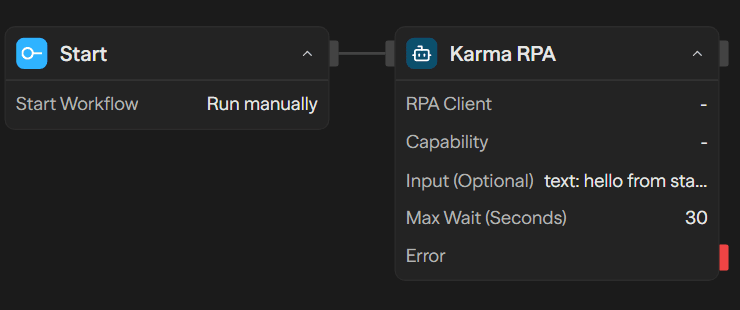
Overview
Karma RPA enables you to:
Automate systems with no API: Drive desktop apps, legacy ERPs, or internal portals through a client machine you control, without exposing that machine to the internet
Choose the right waiting model: Use the canvas block when a workflow step should pause for the result, or the agent-tool pair when an agent should fire off a job and check back later
Stay within workspace-set limits: Every dispatch is checked against a per-client concurrency cap and hourly rate limit before it's allowed to run
See what's connected: A settings dashboard shows every registered client's online/offline status, recent success rate, and lets an admin approve or block individual capabilities
How It Works
- Register the client - A workspace admin registers a new client machine and receives a short-lived registration token.
- Exchange for a credential - The client machine trades that token, once, for a long-lived credential. The token is single-use and expires quickly if not exchanged.
- Connect - Before every connection, the client mints a very short-lived connect token from its credential, then opens a persistent connection to Mandala using it.
- Publish capabilities - On connect (and every reconnect), the client tells Mandala what it can do: a list of named capabilities, each with a description and an input shape. This fully replaces whatever it published last time.
- Stay visible - The client sends a periodic heartbeat so Mandala knows it's still online; missing heartbeats for too long marks it offline.
- Dispatch a job - A workflow (via the canvas block) or an agent (via the agent-tool pair) asks Mandala to run one of a client's published capabilities. Mandala checks the client is online, under its concurrency/rate limits, and (for agent-initiated dispatch) approved -- then hands the job to the client.
- Get the result - The client accepts the job immediately (a fast, few-second acknowledgment), then does the actual work in its own time -- seconds or minutes later -- and reports back separately when it's done. The canvas block waits for that report up to a configurable timeout; the agent-tool pair returns as soon as the job is accepted and leaves checking the result to a separate tool call.
Dispatch is deliberately two-step: a quick "I got it, starting now" acknowledgment, followed later by a separate, unprompted "here's the result" message. This is what lets an agent fire off a job that takes minutes without ever blocking mid-conversation, while a canvas-block workflow step can still simply wait for the same job to finish.
Setting Up an RPA Client Machine
There is currently no "Add RPA Client" button in the Mandala UI. Registering a new client is an authenticated API action a workspace admin performs directly; a dedicated UI for this is expected in a future update.
This section is a quick summary for workflow authors. If you're the one building or running the client program itself, see the dedicated Karma RPA section for the full registration walkthrough, the client wire-protocol reference, and credential-security guidance.
Register the client: A workspace admin sends the client a name and receives a registration token, valid for 10 minutes and shown exactly once. It is never retrievable again after this step.
Exchange the token: The client machine's setup process calls Mandala once with that registration token and receives back a long-lived credential -- also shown exactly once. Store it securely on the machine; it's what proves the machine's identity from now on.
Mint a connect token: Before each connection attempt, the client uses its stored credential to request a fresh, very short-lived (about a minute) connect token over a plain HTTPS call. The long-lived credential itself never travels over the realtime connection -- only this short-lived token does.
Connect and publish: The client opens its persistent connection using the connect token, then immediately publishes its capability manifest (name + description + expected input shape for each automation it offers) and starts sending a periodic heartbeat.
A capability's declared input shape is stored by Mandala but isn't currently displayed or validated anywhere in the block configuration UI -- the canvas block's "Input" field is a freeform JSON editor. Confirm the exact fields a capability expects with whoever set up the client machine.
Using Karma RPA in a Workflow
Karma RPA ships as two separate blocks, because a canvas step and an agent tool need to wait for a result in fundamentally different ways:
Drop this block directly on the canvas when a workflow step should dispatch a job and wait inline for its result. Pick a registered client, then one of its published capabilities, provide input, and the block pauses execution until the client reports completion or the configured wait time is exceeded.
Fails immediately if the client is offline or unreachable, rather than waiting out the full timeout for a client that was never going to respond.
Add this from an Agent block's own Tools list when the agent itself should decide when to dispatch a job. It exposes two operations:
- Dispatch Job: fire-and-forget -- returns as soon as the client accepts the job, never waiting for the capability to actually finish
- Check Status: looks up a previously dispatched job by its id and returns its current status and, once available, its result
Use this instead of the canvas block whenever the automation might take longer than an agent should ever be blocked waiting on a single tool call.
Configuration Options
RPA Client - The registered client machine to dispatch to.
Capability - One of the selected client's published capabilities.
Input (optional) - JSON input passed to the capability, matching whatever input shape that capability's own manifest describes.
Max Wait (seconds) - How long to wait for the client to complete the job before failing with a timeout (1-600 seconds).
Operation - Dispatch Job or Check Status.
RPA Client / Capability - Same as the canvas block; shown only for Dispatch Job.
Input (optional) - JSON input for the capability; can be left blank and filled in by the agent at call time.
Job ID - The id returned by an earlier Dispatch Job call; shown only for Check Status, and usually left for the agent to supply from its own prior tool result.
Managing Clients
Registered clients, their live status, and per-capability approvals live under Settings -> Tools -> RPA Clients.
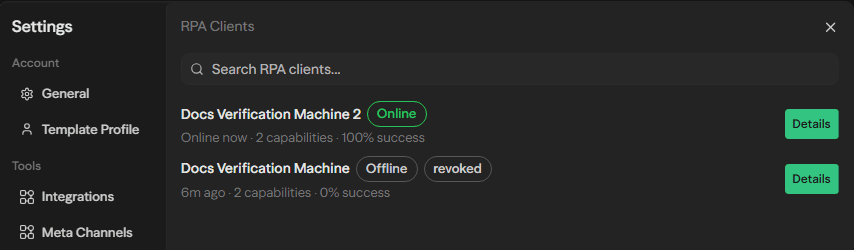
The client list shows each machine's name, whether it's currently online or offline, its last-seen time, how many capabilities it has published, and (once it has run jobs) its recent success rate. Opening a client shows more detail: success rate and average duration over its recent jobs, a readable summary of its machine identity, and a switch per published capability to explicitly approve or block it. Leaving a capability's switch untouched falls back to the workspace's default approval setting.
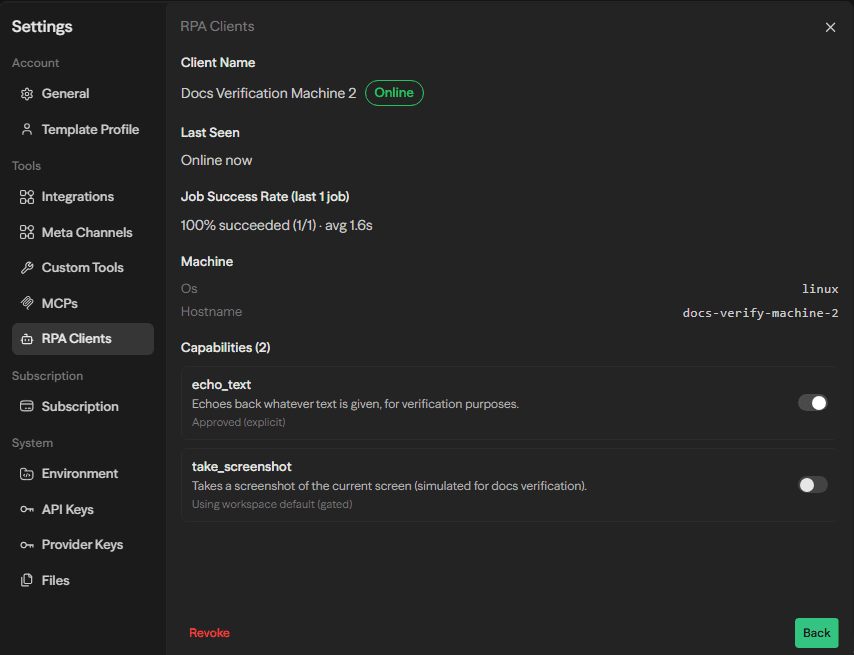
Per-capability approval applies to every dispatch path -- the canvas block and the agent-tool pair both check it before running a capability, so blocking a capability here blocks it everywhere.
Notifications
If a registered client goes offline, Mandala waits a short grace period (2 minutes by default, configurable per notification subscription) before firing an rpa_client_offline alert, so a brief network blip doesn't generate noise. The alert is delivered through whichever channel your workspace's notification subscriptions are already configured for -- email, a webhook, or Slack -- there's no separate delivery mechanism just for this alert.
Security: Why a Duplicate Connection Revokes the Whole Credential
Most systems that see a second connection attempt on an already-active credential simply reject the newcomer and leave the original connection alone. Karma RPA does something more aggressive on purpose: a second live connection on a credential that already has one active is treated as evidence the credential itself may have leaked onto a second machine, and the entire credential is revoked -- closing the original connection too, not just refusing the newcomer.
This matters because a Karma RPA credential is long-lived and lives on a machine outside Mandala's own control, closer to a login session than a one-time password. If Mandala only rejected the duplicate, a genuinely stolen credential could keep working indefinitely as long as it never happened to collide with the legitimate connection.
If this happens to you: it usually means either a genuine security issue (the credential leaked to another machine) or an operational one (the same client software was started twice, or restarted so quickly its old connection hadn't yet been cleaned up). Either way, the fix is the same -- register the client again to receive a fresh credential, and make sure only one instance of the client runs against it at a time.
Known Limitations
- No UI for registering a client yet. Registration is currently an authenticated API action; see "Setting Up an RPA Client Machine" above.
- Capability input shape isn't surfaced in the UI. A capability's declared input shape is stored but not shown or validated in the block configuration panel -- confirm expected fields out of band with whoever set up the machine.
- Not yet supported: native connectors for specific RPA vendors (e.g. UiPath, Power Automate) -- clients integrate through Karma RPA's own open protocol instead; client pools shared across multiple workspaces; and deeper machine health/analytics beyond online/offline status.
Best Practices
- Name clients distinctly: Client and capability names are how both the canvas block and the agent tool pair identify what to dispatch to -- clear, distinct names make workflow configuration and agent tool selection much easier to get right.
- Size Max Wait to the capability, not your patience: A capability that opens a legacy desktop app and fills in a form can genuinely take minutes -- set the canvas block's timeout to match what the automation actually needs, not a guess.
- Prefer the agent-tool pair for long-running or unpredictable capabilities: If a capability's duration varies a lot, don't make an agent block on it inline -- dispatch it, let the agent continue, and check its status later.
- Review capability approvals when adding a new client: A newly registered client's capabilities inherit the workspace's default approval setting until explicitly reviewed.
- Treat a revoked-client notice as an incident, not a glitch: See "Security" above -- re-register rather than assuming it will resolve itself.
Inputs and Outputs
success: Whether the job completed successfully
output: The capability's result payload
jobId: The id of the job that was created
jobId: The id of the created job (Dispatch Job)
status: The job's current lifecycle status
output: The capability's result payload, once completed
error: A description of what went wrong, when the job didn't complete
reason: A machine-readable failure reason when unsuccessful